Open and Secure Password-Protected Bank Statement PDFs
Use this guide for documents issued to you or files you are authorized to manage. Start with the password instructions supplied by the bank or agency, create an unlocked working copy only when export or printing is allowed, then place that copy in protected storage instead of leaving it exposed in Downloads.
The issuer’s email or download page is the best source for the password rule. After opening the PDF with the correct password, use an allowed export or Save as PDF choice to make a working copy. Do not treat the unlocked copy as safe by default. Keep the original unchanged and move the working copy into encrypted storage before syncing, sharing or archiving it.
In This Guide
- Understand open passwords, permission controls and ownership limits
- Check frequent bank and government password patterns
- Create an unlocked working copy without uploading the file
- Choose what should happen to the file after unlocking
- Compare Folder Lock, Folder Protect and platform support
- Resolve password and export problems safely
- Review storage, pricing and recovery questions
Reasons Banks and Government Portals Lock Downloaded PDFs
A statement sent through email may pass through inboxes, backups and shared devices. Requiring a code before the document opens adds a barrier between the attachment and anyone who gets access to the message.
Two controls are commonly confused. An open password is required before the document can be read. A permissions setting may allow viewing while limiting printing, copying or editing. The steps on this page are intended for owners who can already open the file and are allowed to create a usable copy.
Save the untouched download in a separate protected location. Use a duplicate for tax preparation, loan applications or internal record keeping. This preserves an original version if an auditor, bank or government portal later requires it.
Removing a password improves convenience, not confidentiality. The moment a new copy opens without a code, anyone who can reach that file may be able to read account details, addresses, identifiers and transaction history.
Bank and Government PDF Passwords: Start With the Issuer’s Instructions
Password formulas can differ by institution, document type and problem date. Use the message that delivered the PDF as the source of truth. The decoder below is a starting point for familiar patterns, not a guarantee.
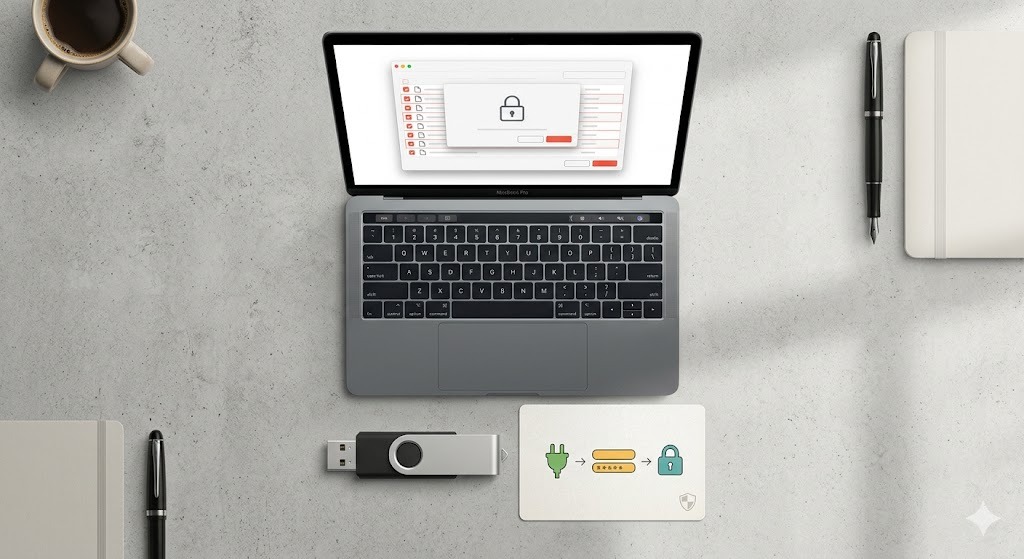
Frequent Patterns to Check
- SBI statements: Try the current registered mobile-number suffix together with the birth-date sequence stated in the delivery message. Older statements may follow a various rule.
- Canara Bank documents: Look for a customer ID rule or a name-and-date combination. Capitalization and date length matter.
- Bank of Baroda files: A name prefix joined to a date of birth is a frequent pattern, but the exact case and date order should be checked in the issuer notice.
- e-Aadhaar: The usual structure combines the opening letters of the name in uppercase with the four-digit birth year.
Ways to Create an Unlocked Copy of Your Own Bank Statement
You must first open the document with the correct password. The approaches below create a second copy; they do not recover an unknown password and they should not be used to defeat restrictions on a document you are not authorized to alter.
Method 1: Save a New PDF From Chrome or Edge
This is useful when the browser allows printing after you enter the open password.
- Make a duplicate of the original downloaded file.
- Open the duplicate in Chrome or Edge and enter the issuer-provided password.
- Press Ctrl + P on Windows or Cmd + P on macOS.
- Select the browser’s Save as PDF destination.
- Save with a clear working-copy name in a temporary folder.
- Close the browser, reopen the new file and confirm that every page is present and readable.

If the print command is disabled, stop and use an export choice supplied by the issuer or an authorized PDF application. Do not look for a tool whose purpose is to bypass the restriction.
Method 2: Export With Preview on macOS
- Open a duplicate in Preview and enter the correct password.
- Choose File > Export.
- Leave encryption turned off for the working copy.
- Save, reopen and compare the page count with the original.

Before You Move or Share the New Copy
Keep the bank-issued PDF unchanged in protected storage.
Check page count, dates, balances and legibility before deleting anything.
Place it in an encrypted locker before cloud sync or long-term retention.
Delete unneeded exports and empty the trash after the handoff is complete.

Choose Protection Based on What You Need to Do Next
An unlocked PDF is easier to submit, combine and review, but it is also easier to expose. For bank statements, tax records and identity documents, the stronger default is an encrypted locker that can hold many files under one access point.
Folder Lock is the better match when confidentiality is the goal. It can place documents inside AES-256 encrypted lockers on a computer and can work with supported cloud-storage lockers. Folder Protect serves a various purpose on Windows: it applies access rules such as blocking visibility, opening, modification or deletion.

Folder Lock and Folder Protect Solve Different Problems
Choose the product by the risk you are trying to control, not by the similarity of the names.
Folder Lock
Use it when the contents should be unreadable outside an encrypted locker. It is the stronger fit for statements, tax files, identification records and document archives.
- Creates encrypted local or supported cloud lockers
- Can group many PDFs under one locker workflow
- Supports cross-device access through desktop and mobile apps
- Windows edition also includes portable lockers, file shredding and privacy cleanup
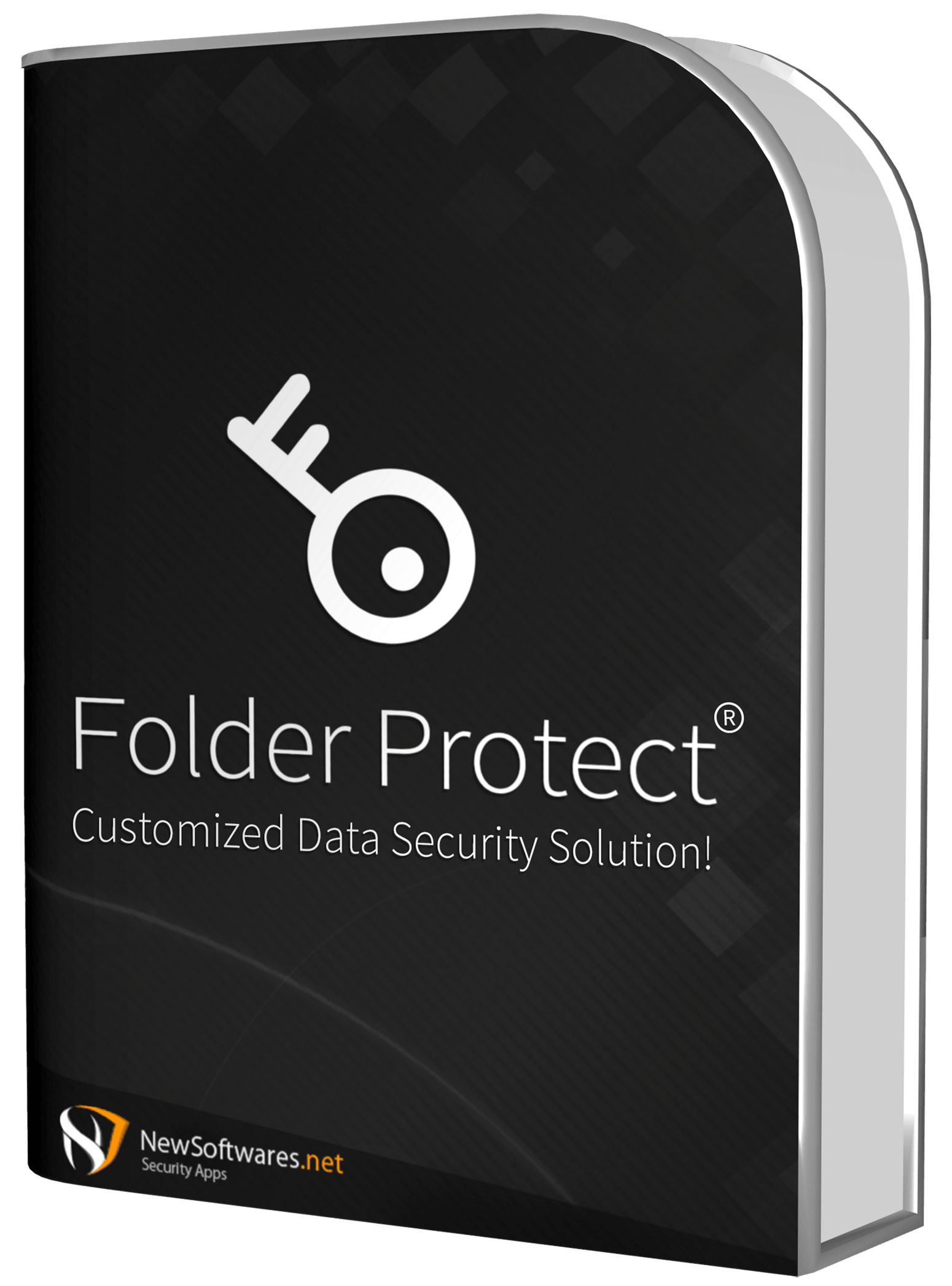
Folder Protect
Use it on a Windows computer when a file may remain available for work but should not be altered, deleted, opened or displayed to other users.
- Applies separate rules for access, visibility, writing and deletion
- Can target files, folders, drives, programs or selected file extensions
- Includes automatic re-protection and Windows Safe Mode support
- Does not replace encryption for data copied away from the protected computer
What Folder Lock Adds After the PDF Is Unlocked
The core job is secure storage. Extra capabilities depend on the operating system and plan.
Desktop and supported cloud lockers, lock-and-hide controls, secure sharing, portable encrypted lockers, shredding and Windows activity cleanup.

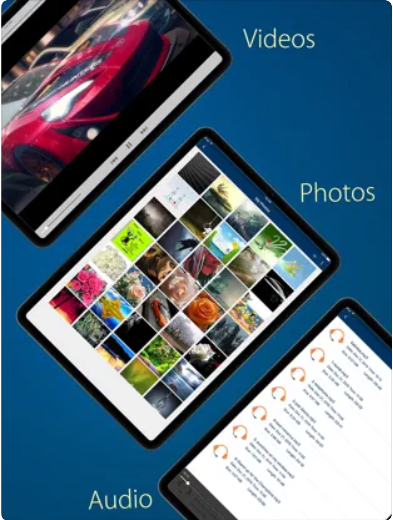
Local and supported cloud lockers, cross-device access, encrypted notes and controlled sharing in a Mac-focused application.

Private storage for media, documents, audio, notes and wallet information, plus app locking, a private browser, cloud backup and failed-access records.
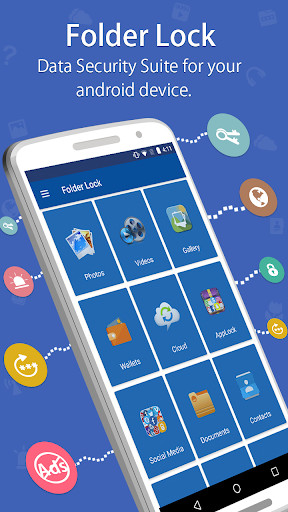
Private storage for media and documents, secure notes and wallets, cloud backup, failed-access capture, a private browser and Wi-Fi file transfer with a computer.
Free and Pro Plan Snapshot
| Plan | Locker capacity | Synced devices | Best starting point |
|---|---|---|---|
| Free | 1 GB | 2 devices | Testing the workflow with a limited document set |
| Pro | Unlimited in the supplied comparison | 5 devices | Ongoing archives, sharing and broader function access |
The official checkout currently lists Folder Lock 10 Pro at US$39.95 per year. Pricing, plan names and function availability can change, so confirm the checkout details for your platform before purchasing.
Protection Method Comparison
| approach | What it controls | Multiple PDFs | Best use |
|---|---|---|---|
| Issuer’s original PDF password | Opening the individual document | Managed one file at a time | Keeping an untouched source copy |
| Folder Lock encrypted locker | Readability of files stored inside the locker | Yes | Private storage, archiving and supported cloud workflows |
| Folder Protect access rules | Local visibility, access, editing or deletion on Windows | Yes | Shared computers and tamper-control scenarios |
Important Limitations
- Neither product discovers an unknown bank-statement password.
- A file is exposed again whenever it is exported or copied outside an encrypted locker.
- Folder Protect is access-control software, not a substitute for encrypting a portable copy.
- Cloud sync and sharing depend on supported services, accounts and device setup.
- Encrypted data may be unrecoverable if the master password and recovery access are lost.
- functions are not identical across Windows, macOS, Android and iOS.
Problem Solving: When the Password or Export Method Fails
Work from the issuer’s instructions and preserve the original file. The safest recovery route is usually a fresh download or support request, not a password-cracking website.
Check the email body, SMS notice, download page and help text inside the official banking or government portal. Use the spelling, capitalization and date format shown there.
The institution may have changed its formula, the file may belong to a various account profile, or the document may use data that was registered when it was issued. Download a new copy and compare the new delivery instructions.
Folder Lock and Folder Protect do not recover an issuer password. For your own document, request another copy from the official portal or contact the issuer after identity verification.
The document may prohibit printing, the browser may not support the file correctly, or an organization policy may block the action. Use an authorized export function or ask the issuer for a submission-ready copy.
Financial Document Handoff Checklist
A clean handoff reduces both exposure and confusion for the recipient.
Keep the issuer’s original password-secured PDF in a separate protected folder.
Share only the statements and date range the recipient actually requested.
Remove account numbers, identifiers or unrelated pages when the recipient does not need them.
Use neutral filenames that do not reveal full account numbers or identity details.
Store unlocked working copies inside an encrypted locker before cloud synchronization.
Delete temporary desktop, browser-download and email-attachment copies after completion.

Common Questions and Answers
PDF Passwords and Authorized Copies
No. Entering the password only unlocks that viewing session. A separate export or Save as PDF action is required to create a copy that opens without the original code.
Keep it. The original is useful as an issuer-provided record and may be required for later verification. Store it separately from any working copy.
Do not attempt to defeat a restriction. Use an authorized export function, request a various version from the issuer or submit the original file with its password through the recipient’s approved process.
Folder Lock and Folder Protect
No. It protects files after you can access them. It is not a bank-password recovery or cracking tool.
Folder Lock can encrypt files inside lockers. Folder Protect is designed around Windows access rules, including whether a local user can see, open, change or delete an item.
Its desktop products include lockers intended for supported services such as Dropbox, Google Drive and OneDrive. Configure the locker before uploading sensitive working copies and confirm synchronization on each linked device.
The supplied product material positions Folder Protect as a Windows product. Folder Lock has separate Windows, macOS, Android and iOS applications, with functions that differ by platform.
Plans, Devices and Recovery
The supplied comparison lists a 1 GB locker allowance and synchronization across two devices. It is suitable for evaluation, but confirm current limits on the official product page.
The official checkout reviewed in July 2026 lists Folder Lock 10 Pro at US$39.95 per year. Taxes, promotions and regional checkout terms may change the final amount.
Encrypted storage is built to resist access without the correct credentials. Keep the password and account-recovery information in a separate secure password manager before placing irreplaceable records in a locker.
Use Two Copies for Two Different Jobs
Keep the issuer’s password-secured PDF as the record copy. Create an unlocked duplicate only for an authorized workflow, verify it, and place it inside encrypted storage as soon as the task is complete.
Choose Folder Lock when the file itself must remain unreadable outside protected storage. Choose Folder Protect on Windows when the goal is to control local viewing, editing or deletion.